 Reelsmith
How to Make Animated Text and 3D Titles
Create eye-catching titles in a free online video editor — 3D, gradient and two-tone text, word-by-word animation, and ready-made title templates.
A good title grabs attention in the first second. Reelsmith gives you three ways to make one: start from a template, apply a one-click style, or build your own look with text effects and animations.
The fastest way: a title template
Open Effects ▸ Title Templates and double-click one — for example Retro Pop 3D Title, Epic 3D Title, Kinetic Words or Bouncy Words. It's added at the playhead, sized for your frame. Double-click the text in the Program monitor to type your own words.
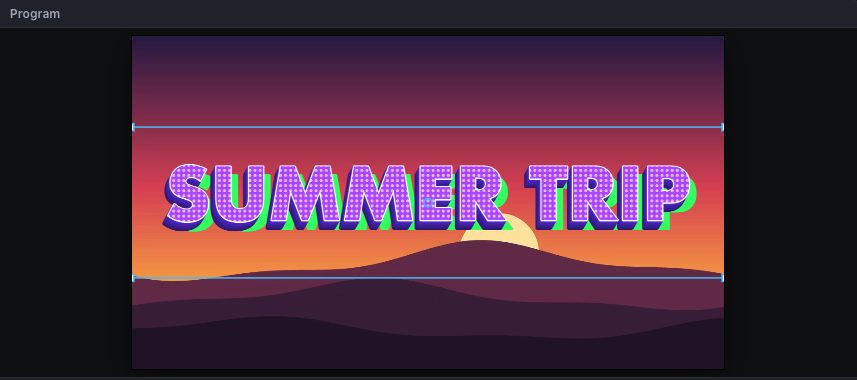
Type your own title
- Press
Tfor the Type tool. - Click in the Program monitor and type. Press ⌘Enter (Ctrl+Enter on Windows) or click outside to finish.
- Drag the text to move it; drag the corner handles to resize.
- Set the font, size, colour, outline, shadow and background box in Effect Controls ▸ Text.
One-click styles
With the title selected, double-click a style in Effects ▸ Text Styles: Retro Pop 3D, Epic Gold 3D, Gradient Bold, Two-Tone, Sticker Outline, Candy 3D, Gold Luxe, Comic Burst 3D, Neon, Elegant and more. Applying a new style replaces the old one, so you can try several quickly.
Build your own look
Effect Controls ▸ Text Effects has:
- Gradient fill with two colours and an angle.
- 3D extrude with depth, direction and side colour.
- Highlight words: wrap a word in asterisks —
Make it *pop*— and it takes the highlight colour. - Halftone dots, outer outline, offset shadow, glow and letter spacing.
Animate it
Drag an animation from Effects ▸ Animations onto the title:
- In: Pop, Zoom, Slide, Fade Up, Blur In, Bounce, Stamp, Typewriter, and text-only Words Pop, Words Rise, Letters Drop and more.
- Out: the same moves in reverse, plus Erase.
- Loop: Pulse, Float, Wobble, Letter Wave or Word Bounce while the title is on screen.
Each title has one In, one Out and one Loop animation. Set their duration, speed and strength in Effect Controls ▸ Animation.
Tips for titles that read well
- Keep it short — three to six words.
- Use strong contrast: a light fill with a dark outline or shadow is readable on any background.
- Leave a little space at the edges; click Safe in the Program monitor to see the safe zone.
More detail: Titles and 3D, gradient, halftone and animated text.