 Reelsmith
How to Remove the Background from a Video or Logo
Make a white, black or green background transparent — for logos, subscribe animations and green-screen clips — in a free browser video editor.
Overlay graphics are everywhere: a subscribe animation in the corner, a logo watermark, a green-screen clip of you over a new background. They usually come with a solid background that has to go. Reelsmith removes it by colour in a couple of clicks.
Remove a video background
This works for animations on a white, black or green background, such as a like-and-subscribe clip.
- Put your main video on V1.
- Put the overlay video on V2, directly above it.
- Right-click the overlay clip ▸ Remove Background. (Or select it and click Remove Background in Effect Controls.)
Reelsmith looks at the edges of the frame, detects the background colour and sets up the Ultra Key effect for you.
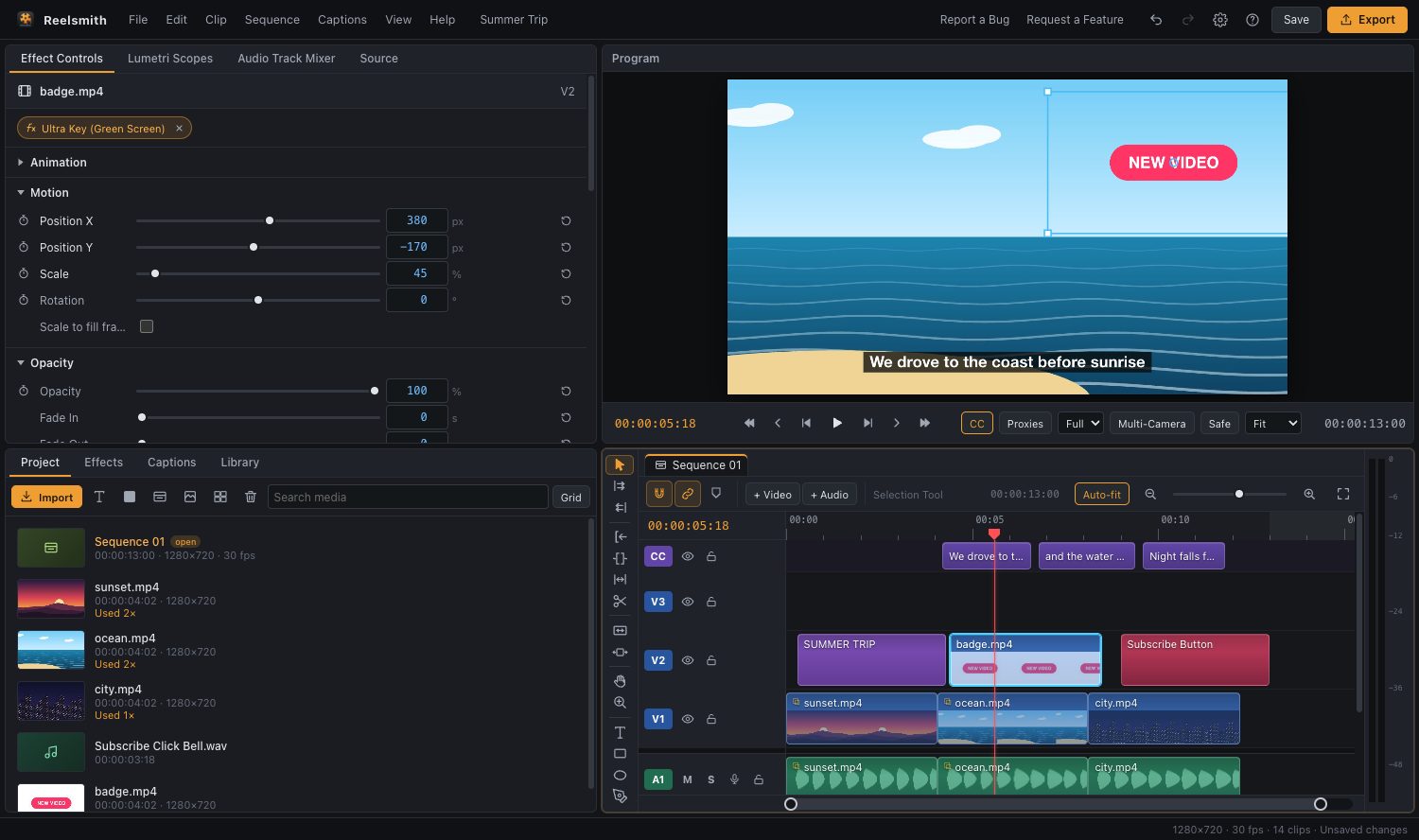
Fine-tune it
In Effect Controls ▸ Ultra Key:
- Mode: Brightness for white, black or grey backgrounds; Colour for green or blue screens.
- Keep inside (edges only): removes only the background that touches the edges of the frame, so white text or icons inside the animation stay visible.
- Tolerance: raise it if a light fringe remains; lower it if parts of the animation disappear.
- Softness: smooths the edge.
Place and size it
Use Effect Controls ▸ Motion — or drag the clip in the Program monitor — to scale it down and move it, for example to the bottom of the frame.
Remove a logo or image background
- Import the logo.
- Right-click it in the Project panel (or on the timeline) ▸ Remove Background…
- The preview shows transparent areas as a checkerboard. Click the preview to pick the background colour, or Shift+click to add more colours for gradients.
- Choose Background touching the edges to keep white parts inside the logo, or This colour everywhere to also clear the holes in letters like O, A and e.
- Adjust Tolerance and Edge softness, tick Trim transparent edges if you like, and click Remove Background.
A new transparent PNG is added to the Project panel and your clip switches to it. The original stays untouched.
When colour removal isn't enough
Background removal works by colour, so it's best for graphics and screens with a plain background. To cut out a person in an everyday photo or video, draw a mask around them and use mask tracking to follow the movement.