 Reelsmith
Add a Blurred Background to a Video
Add a blurred background to a video: fill the empty space around a landscape or small clip in a 9:16 frame with a blurred copy. Free, in your browser.
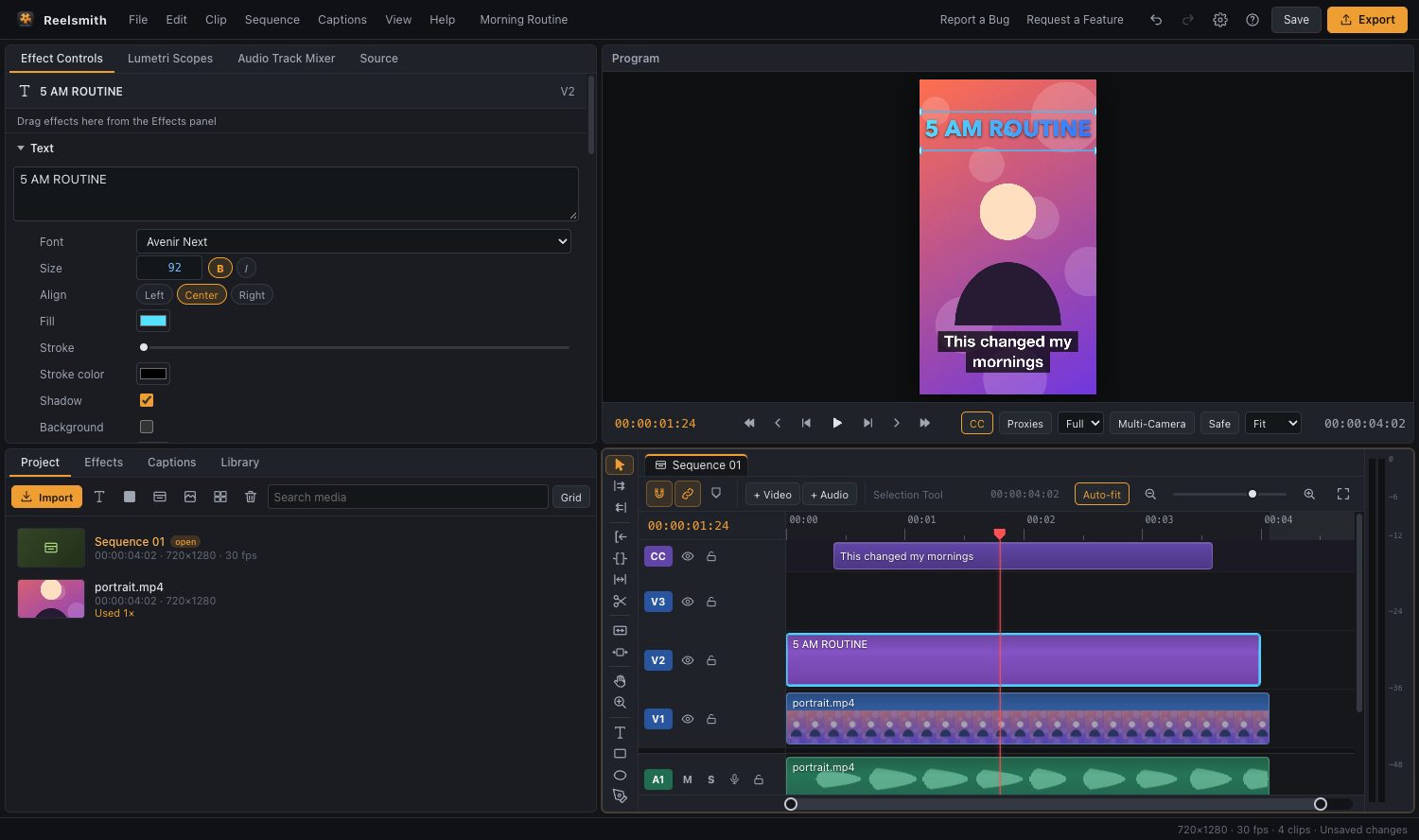
Posting a landscape clip to TikTok, Reels or Shorts? Instead of black bars, fill the empty space with a soft, blurred copy of the video — the popular look that keeps the whole picture visible.
How to add a blurred background
- Click Open the tool above.
- Click Sequence Settings and choose Vertical 9:16 (1080×1920) (or square 1:1).
- Import your video and drag it onto the timeline.
- Drag Background Blur Fill from Effects ▸ Creative Effects onto the clip.
- Click Export and choose YouTube Shorts / Reels / TikTok (9:16).
Adjust the look
Select the clip and open Effect Controls ▸ Creative Effects to set the strength. Add a title in the blurred area at the top — it is a natural place for a headline.
When to use it
- Reposting landscape videos as Shorts or Reels.
- Screen recordings and slides that would be too small if cropped.
- Photos of a different shape in a vertical slideshow.
Questions
Is this different from blurring a face?
Yes. This fills the background around the video. To hide part of the picture, apply Mosaic with a mask instead.
Can I use a colour instead of blur?
Yes. Put a Color Matte on the track below the clip instead.
Related: resize a video for TikTok and Reels and creative effects.
Try it now — free, no sign-up.Reelsmith runs in your browser. Your videos are never uploaded.
Open the editor