 Reelsmith
Extract Audio from Video
Extract audio from a video online for free and save it as AAC (.m4a) or WAV — the whole video or just one part. Runs in your browser, nothing is uploaded.
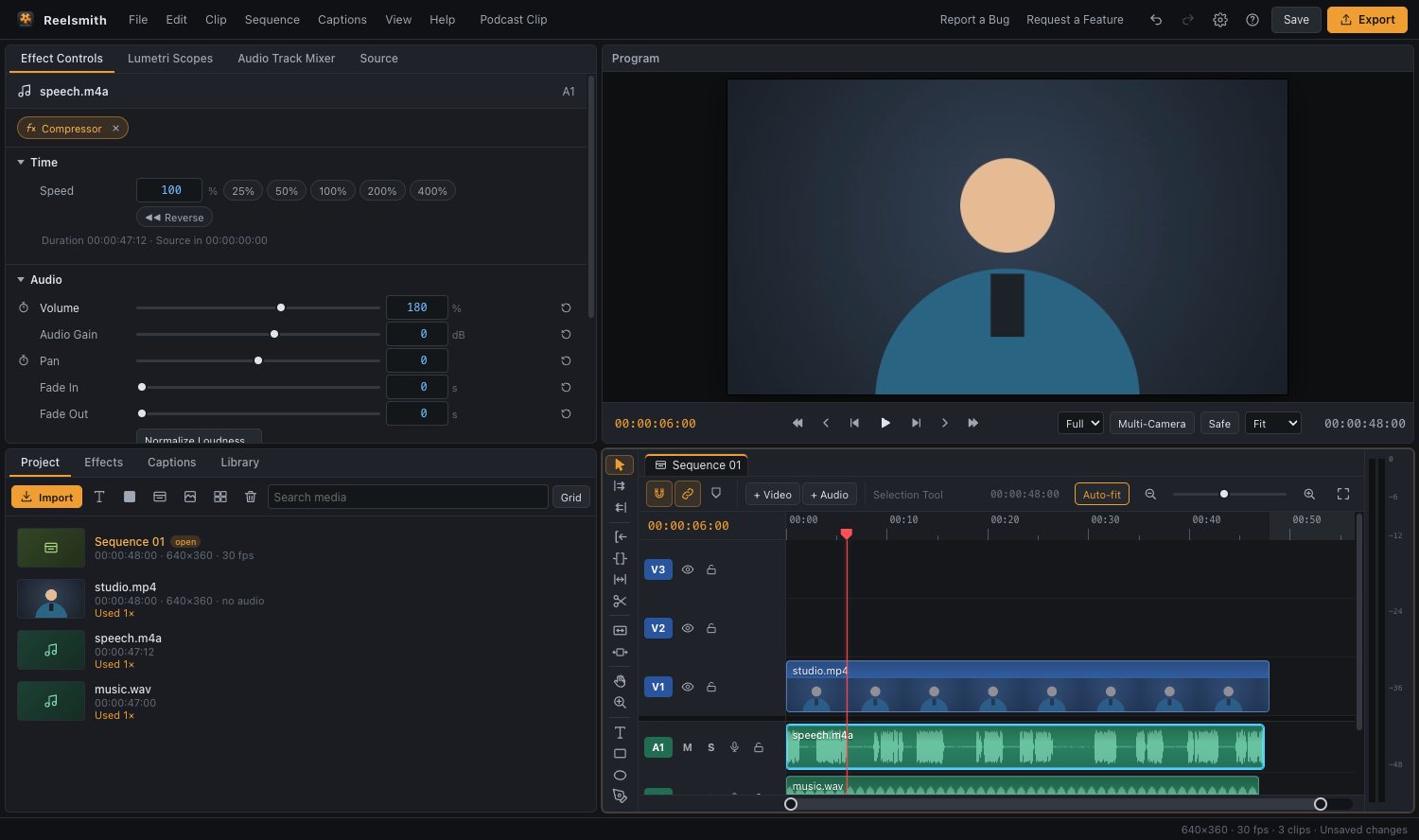
Save the sound of a video as its own file — a song from a clip, a podcast from a recorded call, or dialogue to clean up in an audio app. Reelsmith extracts it on your device, with no upload.
How to extract audio from a video
- Click Open the tool above and import your video.
- Drag it onto the timeline.
- Optional: trim it, or press I and O to mark the part you need.
- Choose File ▸ Export Audio… (or click Export Audio in the guide).
- Pick AAC (.m4a) for a small file that plays everywhere, or WAV (.wav) for full quality, then click Export Audio.
Improve it before you export
The export includes every unmuted audio track with its volume, effects and fades, so you can clean the sound first:
- Make it louder and even with Clip ▸ Normalize Loudness… — see how to make quiet audio louder.
- Remove rumble with High-Pass and buzz with DeHum from Effects ▸ Audio Effects.
- Add music on a second track — both are mixed into the file.
M4A or WAV?
M4A (AAC) is compressed and small, about 1.4 MB per minute, and plays on phones, computers and in browsers. WAV is uncompressed (about 11 MB per minute) — best when you will keep editing the sound.
Questions
Can I save the audio as MP3?
Reelsmith saves M4A (AAC) and WAV. M4A plays anywhere MP3 does and sounds better at the same size.
Is my video uploaded?
No. The audio is mixed and encoded in your browser.
Can I extract audio from several clips at once?
Yes. Put them on the timeline one after another — the export is one file with all of them.
More: Export a GIF or audio only and Working with audio.