 Reelsmith
Remove Audio from Video
Remove audio from a video online for free: mute the whole clip or just a part, then add music or a voice-over. Runs in your browser with no upload.
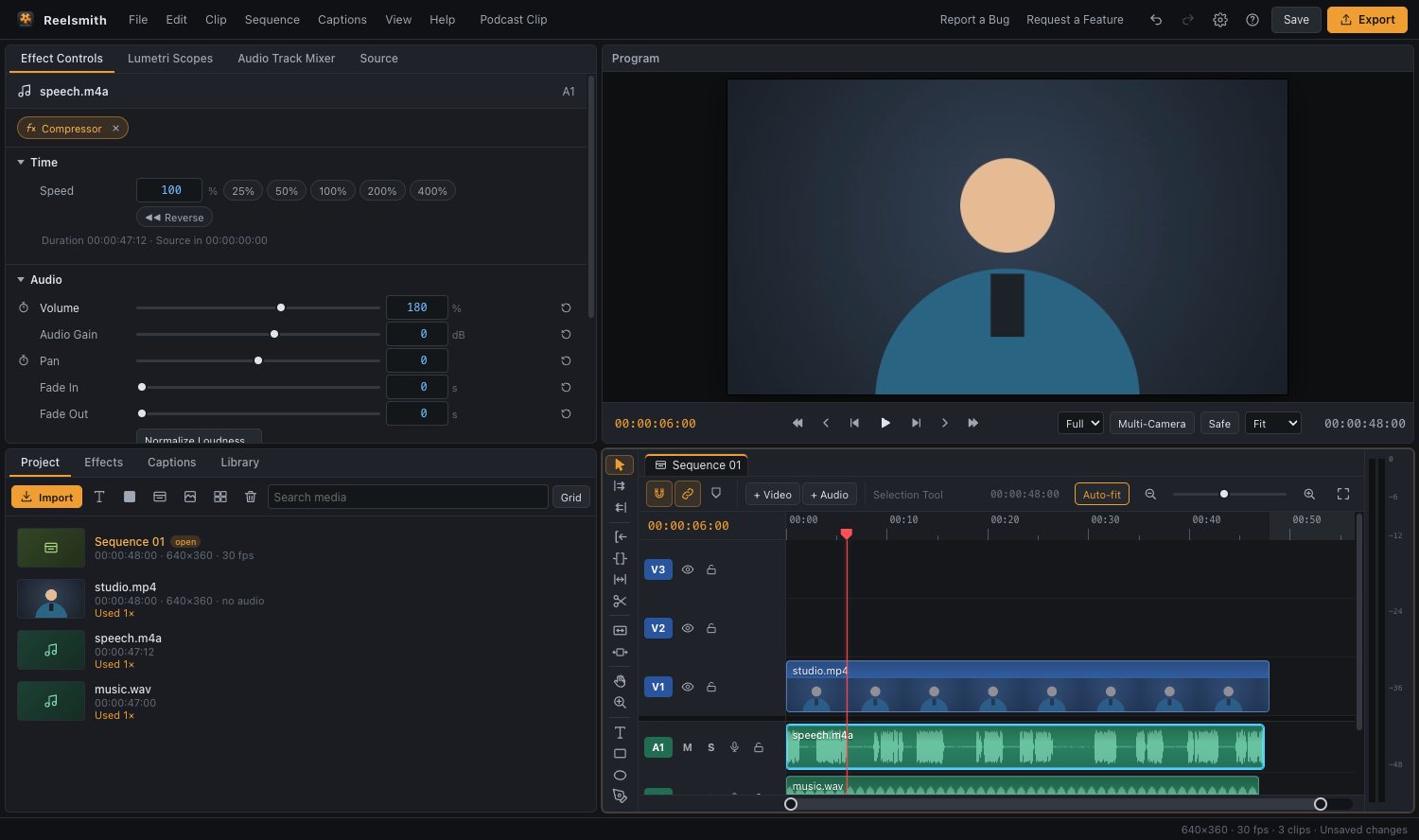
Mute a video completely, silence one part, or replace the sound with music or a voice-over — free, in your browser.
How to remove audio from a video
- Click Open the tool above and import your video.
- Drag it onto the timeline.
- Select the clip and press ⌘L (Ctrl+L) to unlink the video and audio.
- Click the audio part (on the A track) and press Delete.
- Click Export — the new video has no sound.
Other ways to mute
- Mute a whole track: click M on the audio track header. Muted tracks are left out of the export.
- Silence one part: split the audio with ⌘K (Ctrl+K) at the start and end, then delete that piece.
- Turn it down instead: lower Volume in Effect Controls ▸ Audio.
Replace the sound
After removing the original audio, add music (add music to a video) or record a narration with the mic button on an audio track.
Questions
Does removing the audio change the picture?
No. The video is exported exactly as before, just without sound.
Can I remove background noise instead of all the sound?
Yes — see how to make quiet audio louder and clearer for High-Pass, DeHum and Noise Gate.
More: Detaching audio from video and Tracks: lock, hide, mute, solo.
Try it now — free, no sign-up.Reelsmith runs in your browser. Your videos are never uploaded.
Open the editor